Maintaining Balance in the Digital World: Essential Tips from Paarl IT

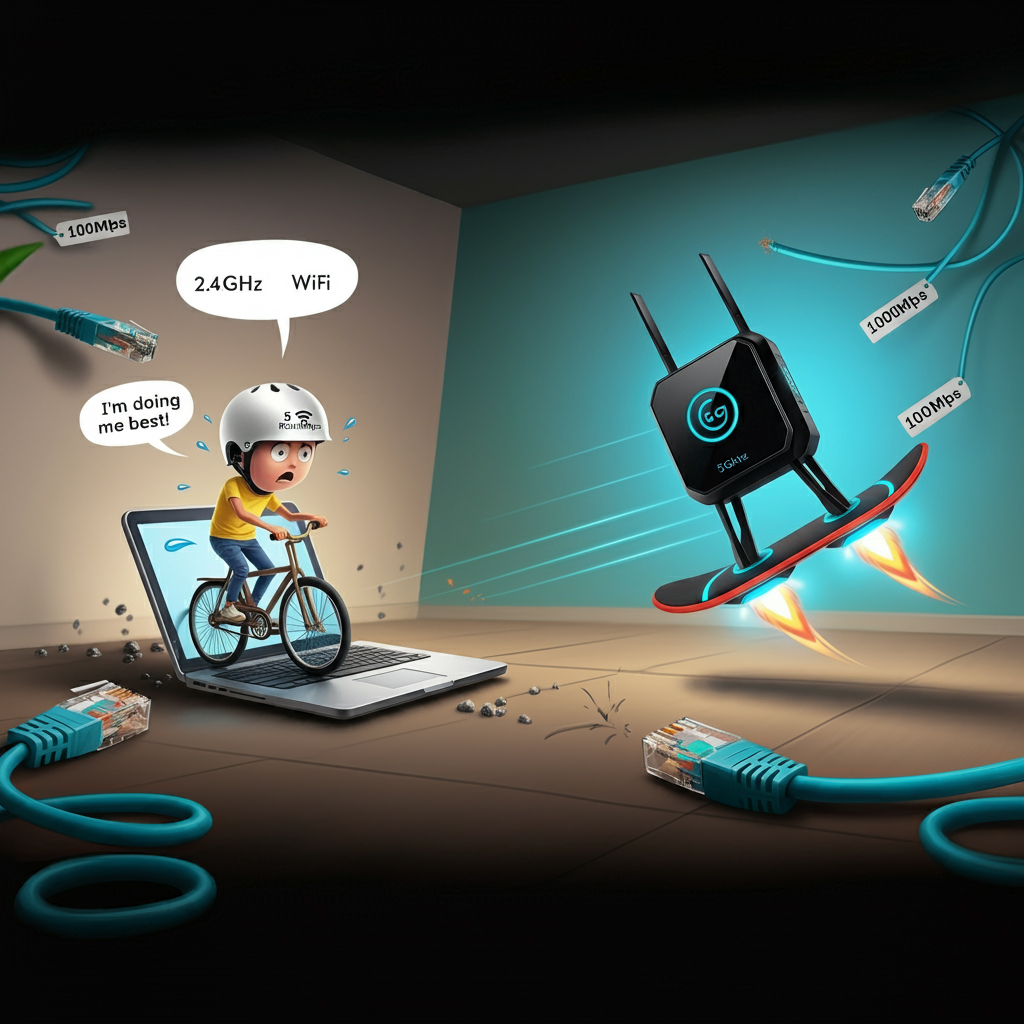
Can Your Ancient 802.11b/g/n Laptop Connect to a Rain 5G Router?

Ever had one of those days where your tech decides to take a nosedive at the worst possible moment? Well, that’s exactly what happened to one of my clients yesterday. Picture this: 7 PM, a dead hard drive, and a new job starting the next day. Cue the panic mode!
But wait, there’s more! The hard drive wasn’t just playing dead—it was actually dead. The solution? A new SSD, of course. We got the order in, and by 9 AM the next day, it was sitting on her desk, ready to be installed. Now, here’s the kicker: I’m all the way in Paarl, and she’s chilling in Blouberg. No big deal, right? Well, it turns out, doing a Windows 10 install remotely is like trying to guide someone through defusing a bomb—except the bomb is a laptop, and the timer is ticking down to her first day at the new job.
The Challenge: Install Windows 10 Remotely Without a Spare PC
The first obstacle? She didn’t have a spare PC to create a bootable flash drive. But hey, she did have a MacBook. Ever tried making a Windows 10 bootable USB on a Mac? It’s like trying to fit a square peg into a round hole, but guess what? We made it work!
Step 1: Brew Some Homebrew Magic
First things first, we needed to get a few tools on that Mac. So, I got her to install Homebrew, which is like the Swiss Army knife for Mac OS. We ran this little command in the terminal:
/bin/bash -c "$(curl -fsSL https://raw.githubusercontent.com/Homebrew/install/HEAD/install.sh)"Boom! Homebrew installed, and we were ready to rock.
Step 2: Format, Mount, and Copy
Next up, we formatted the USB drive in FAT—because let’s face it, FAT is the one thing both Mac and Windows can agree on. We mounted the ISO file and copied all the files except the sources directory. Why? Because there’s this one pesky file, 'install.wim', that’s too big for FAT. (Seriously, who knew files could be this dramatic?)
Step 3: Splitting the Wim—Not the Whim!
Now, here comes the fun part. To deal with our oversized install.wim file, we had to split it like we were slicing a cake. I opened a new terminal and ran the following command:
wimlib-imagex split ->"copied the path of install.wim"<- ->"copied the path of the usb folder called sources into the command" /install.swm 4000That’s some straight-up wizardry right there! Once the file was split, we copied it over to the USB.

Step 4: The Moment of Truth
With everything set up, she plugged in the USB, booted from it via BIOS, and… BAM! Windows 10 install screen greeted her like an old friend. We were in business!
Step 5: The Data Rescue Mission
With Windows back in action, the last step was to pull all her personal data off the glitchy hard drive. A bit of patience and some data recovery tools later, and she was all set for her new job.
Wrap-Up: No PC, No Problem!
And that, my friends, is how you turn a tech disaster into a tech triumph—all from the comfort of Paarl. So, next time your hard drive decides to take an unscheduled vacation, just remember: with a bit of tech magic (and a lot of coffee), anything’s possible!